Its Christmas?
In the second part of the lesson, we went back to using Illustrator to make a Christmas card! Here is my Christmas Card.

We started off by putting the text 'Merry Christmas' at the top of our card as the heading. Then we used the Pen Tool to draw a Christmas tree. I had difficulties drawing a nice and regular one- mine looked distorted- but it could still pass off as a Christmas tree. We then changed the colour of the tree to green which is its correct colour. Afterwards, we were introduced to the Shape Tool which allows us to create a variety of shapes with simply a few clicks! We made star shapes to put on top of our Christmas tree and all around our card as decoration. Moving on, we took a picture of either Santa Claus or reindeers from Google (Credits to the amazing Google) and placed it in our card.
We then learnt about the different layers present in our card. We could put an object on top or below another. To do that, we could go to the Menu Bar, click Object > Arrange, or use the quick keys. However, I prefer to open the Layers Palette and work from there. We could choose to hide and lock layers that we aren't currently working on to let us better focus on the one we were working on.
We went on to experimenting with the different formats of files and how they affected our work. Some files are better in the sense that they are compatible with many platforms. For example, PDF is a great file format as it is compatible with all platforms. We exported our file in a few different formats and we noticed that each format changed the file in its way. Some of our cards were made bigger or smaller, and some made blurrier.
This is it for my recap of what we did. Let's move on to look at a logo design that caught my eye!
We started off by putting the text 'Merry Christmas' at the top of our card as the heading. Then we used the Pen Tool to draw a Christmas tree. I had difficulties drawing a nice and regular one- mine looked distorted- but it could still pass off as a Christmas tree. We then changed the colour of the tree to green which is its correct colour. Afterwards, we were introduced to the Shape Tool which allows us to create a variety of shapes with simply a few clicks! We made star shapes to put on top of our Christmas tree and all around our card as decoration. Moving on, we took a picture of either Santa Claus or reindeers from Google (Credits to the amazing Google) and placed it in our card.
We then learnt about the different layers present in our card. We could put an object on top or below another. To do that, we could go to the Menu Bar, click Object > Arrange, or use the quick keys. However, I prefer to open the Layers Palette and work from there. We could choose to hide and lock layers that we aren't currently working on to let us better focus on the one we were working on.
We went on to experimenting with the different formats of files and how they affected our work. Some files are better in the sense that they are compatible with many platforms. For example, PDF is a great file format as it is compatible with all platforms. We exported our file in a few different formats and we noticed that each format changed the file in its way. Some of our cards were made bigger or smaller, and some made blurrier.
This is it for my recap of what we did. Let's move on to look at a logo design that caught my eye!
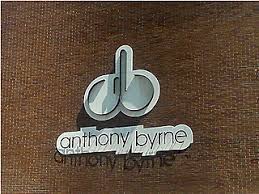
This logo caught my eye because I found it rather funny. Alright, we can see that it is a simple and unique logo, easy to remember, but doesn't it look inappropriate? It resembles something else that would be cheeky for me to mention, but we both know what I'm talking about.
This is it for this entry, hope you liked it. Thanks!

No comments:
Post a Comment