Monday, 28 July 2014

Lesson 22


Creating a book

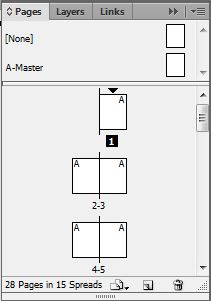
In this lesson, we learnt how to create a book file with InDesign. We need to know this in order to compile the pages of our magazine together into one file for our group project. Here is an example of pages coming together to form a book in InDesign:


We also continued to work on our group project. We finalised our layout on the star grid and checked with our tutor to see if he approved it. He did! He then gave us the star grid in softcopy so that we will be able to start working on our magazine. I felt quite accomplished as my group was one of the first to have our designs approved by Mr Cheo and given the grid. Now, time to start figuring out how to put everything in place in InDesign!

Thank you!

Tuesday, 22 July 2014

Lesson 21

Para & Chara Styles

In this lesson, we learnt more on InDesign, namely on how to make use of Paragraph and Character Style. With this, we will be able to make our paragraphs and words look the way we want them to look- neat, orderly, some of them standing out to catch attention. Here is one of the product of the exercise I did to experiment with the styles: 


Here is an exercise we did on our own to test our abilities. This was actually quite hard and I took a long time to do it, but I after I completed it I felt extremely accomplished! I feel it looks quite good, as good as the example given, don't you think? Hahahaha


Thank you!

Lesson 20

More InDesign

In this lesson, we continued with our practice of InDesign. This are my products:


This one was done under the guidance of our tutor

This one was done by ourselves

We also discussed about our grids for the assignment. Mine was a star grid, as mentioned, and my tutor gave me some tips on how I might improve on the elements' placement. My grid is really simple, but I like it as it still has alot of places where I can add in more texts and pictures which can fit in nicely with the rest of the page.

Thank you!

Lesson 19

Grids


In this lesson, we learnt about the importance of grids when designing a newsletter or magazine page. Every magazine page you see now follows a certain grid. Grids help put the elements of the page together neatly and make it look pleasing to the eye. People don't like looking at messy things, and without a proper grid system, newsletters will look messy and out of place. Therefore, we have to place our elements according to the grid system to achieve a neat and appealing overall look. 

Here is an example of one of the grid systems, the star grid : 


For my newsletter, I will also be using the star grid which is for a A3 sized spread. I like this grid system as it is simple, neat, and easy on the eye. Though it is simple, it is able to look appealing to the eye and can easy convey a message to the audience. For this design, see how the text boxes sit nicely within the grid, how the cup in the middle is symmetrical on both side of the middle line and how the title is nicely spread through both pages? The reason why the elements are able to be put there so neatly is because of the star grid. And that, is the power of the grid system.

That's it for this post. Thank you!

Sunday, 13 July 2014

Lesson 18

Presentation: My advertisement


In this lesson, we had to present what our advertisement was about. Here is my ad:


I have created an advertisement on Razing's Gaming Mice. It targets all gamers, regardless of what game they play. It depicts a glowing hand and veins that shows that when you put your hand on a Razer gaming mouse, the connection is so powerful that it is visible; the glowing hand and veins are the side effect of the power. It is like the mouse is an extension of your arm, a part of your hand that you can control as easily as you can your own fingers. That explains the 'Find your hand in gaming' & 'It is a part of you'. The reason that it feels like a part of your hand when you use it is because it is built to fit the hand as comfortably as possible. There are also customizable buttons that are within easy reach of your fingers that you can access if your game requires a lot of hot keys. 

This was a very enjoyable lesson as not only did we get to see everyone's work, we got to share our work and also leave earlier! 

This is it for this post. Thanks!

Lesson 17

CROPPING


In this lesson, we learnt about cropping. Cropping can change a picture significantly. A picture with a certain meaning can have a different meaning to it after it has been cropped. For example, 


With cropping, we can also give more focus. For example, this boy's happiness can be seen more obviously when cropped to have his face cover more of the picture:


We were also introduced to the editorial grid systems and some simple types of grids such as the manuscript grid, column grid and modular grid. These grid are sweet and simple, good for newsletters or pages with lots of text involved, though it might get boring for readers. I don't think that these grids will be perfect for attention-grabbing pages such as those in magazine, but for educational books or pages, these grids should be able to pull it off with appropriate placement of the headline, text, etc, perhaps with an addition of a picture or two. 
Here is an example of the manuscript grid being use for informative or educational purposes:


Thank you!

Sunday, 6 July 2014

Lesson 16

Adobe InDesign

In this lesson, we were introduced to Adobe InDesign. It is rather similar to Illustrator, used mostly for newsletters and magazines. We were guided on how to recreate a newsletter by our tutor and this is my end product. 


It was relatively easy as compared to Illustrator and Photoshop, and our tutor was also very thorough in his instructions, thus I had no problem with creating this newsletter. Here's the next one I recreated by myself:


This is it for this post. Thanks!

Lesson 15

Newsletter Design

In this lesson, we learnt about the basics of newsletter design.

Firstly, consistency matters. 
You have to be consistent with your layout, designs patterns and colours. For example, you cannot have this 2 newsletter together, as they do not match one another and that causes a disruption in the reader's reading. 


You have to have something like this which compliments each other and makes it easy on the reader's eyes.


Secondly, use the right tools. 
You have to use the right programmes to design your newsletter, apply your creative and logical thinking to it, and spend time making it look good. The best you can use is the Adobe Creative Suite, consisting of InDesign, Photoshop and Illustrator. 

Thirdly, know the fundamentals.
Know your colors, know your layout, know your typography. Learn the color wheel to know which color suits each other, what effect each color has on people and how to use the correct color to get the effect you want. For layout, you need to balance the elements of your newsletter so that they don't look messy and misplaced. Align your elements neatly, use sufficient boxes. On how to have good typography, refer to lesson 11 for more information.

Next, know your audience. You have to take in mind who your newsletter is for before you design it so that you can better design it to suit them. For example, a newsletter for youths may not have the design that is appropriate for a newsletter for the elderly.  

Thank you.
Wednesday, 2 July 2014

Lesson 14

E-LEARNING 2

In the second part of E-Learning, I did a very complicated and tedious photoshop. It was really testing and I couldn't really grasp how to do it well, so I ended up having not so good results. I really gave it my best, though I struggled alot. Here it is: 


Lesson 13

E-LEARNING

So we are back to school after a 2 weeks holiday for E-learning. In this lesson I spent my time doing this:


Doesn't look all that good, but I tried. It was harder than I expected, perhaps because I've gotten a little rusty during the holidays.